Monday, February 22, 2010

Photoshop composition

I have pasted the model on the bangles image using using the Move Tool. I have created a drop shadow of the model to blend with the shadows on the Bangles layer. I have used Curves to make the shadows deeper on the Bangles Layer. I have also use the Hue and Saturation to change the model's dress from yellow to red. The lens flare that I have used is a plugin that does not come with Photoshop. I have used Photoshop7 for the composition.
Click the image to see details more clearly.
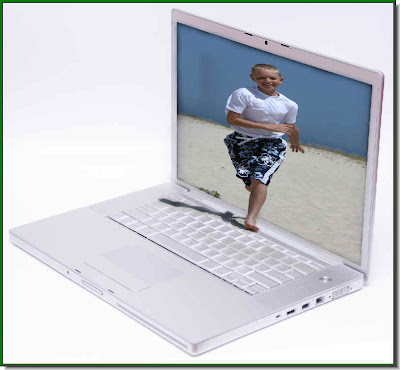
3D effect with Photoshop


3D Box with Photoshop

Let me show you how to make a 3D box interior with Photoshop. Some call it making a room. All you need are two photos.
I have taken these free stock images. The photo of the girl has a white background.

And, here is the 3D box or room, with the girl inside it. The tutorial is here.

Photoshop Resources

you can download Brushes, Gradients, Patterns and Shapes in one package  here. 
This is what you get all in one place. It is available from Sevitinci.
Download and install them in your version of Photoshop.