
Learn how to draw a realistic t-shirt 100% in Photoshop! This detailed step by step tutorial will show you techniques on creating shapes, shading, embossing, and more.
 |  |
 For many, the complexity of Photoshop’s tools can be a bit intimidating.
If used properly however, almost anyone can create realistic and
impressive-looking graphics. In today’s tutorial we will demonstrate how
to create a stylish soda bottle using some easy-to-learn techniques.
For many, the complexity of Photoshop’s tools can be a bit intimidating.
If used properly however, almost anyone can create realistic and
impressive-looking graphics. In today’s tutorial we will demonstrate how
to create a stylish soda bottle using some easy-to-learn techniques.
 You might be surprised what you can do with Photoshop’s drawing tools, a few textures, and a basic understanding of light and shadow. In today’s tutorial we will demonstrate how to create a wooden house icon in Photoshop by applying textures to basic shapes.
 In today’s quick tip tutorial you will learn how to create a barcode
sticker and a paperboard background texture. Let’s get started!
In today’s quick tip tutorial you will learn how to create a barcode
sticker and a paperboard background texture. Let’s get started!



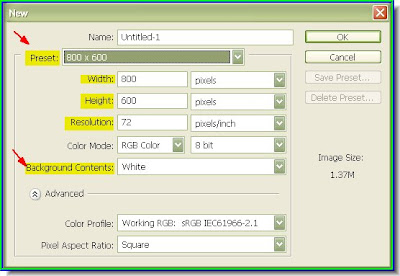

 Step 1 : When you open a new document by going to File>New ensure that the resolution is high. I have set it at 400. I have set the size at 3 x 2 inches and the Color Mode to RGB, which should be changed to CMYK before printing.
 Step 2 : Click the new layer icon and a new blank layer forms above the white background layer. The new layer is Layer 1.
 Step 3 : Click the Elliptical Marquee Tool.
 Step 5 : Click the Foreground Color in the left panel and the Color Picker comes up. Now drag the tiny white sliders on the Spectrum in the middle to select the color you want. I have chosen Blue. In the left panel I have clicked on a shade of Blue. The top half of New also changes to Blue. Click ok.
 Step 6 : Now press ALT+Backspace. This will fill with the Foreground Color. Since we have changed the Foreground to Blue the circle is filled with the color. Press CTRL+D to deselect. Now click on the Elliptical Marquee again and draw out a perfect circle keeping SHIFT pressed. This is being done to cut out a crescent shape from the Blue circle.
 Step 8 : Now press CTRL+J twice. You will find Layer 1 duplicates into Layer 1 copy and Layer 1 copy 2. Layer 1 copy 2 is highlighted, which means you are on that layer.
 Step 9 : With the Move Tool drag the crescent to the right.
 Step 10 : Click on layer 1 copy.
 Step 11 : Now drag this layer apart. You should have three crescents now.
 Step 12 : Now click on Layer1 copy 2, then Layer 1. All three layers will be highlighted as shown.
  Step 13 : Now press CTRL+E. This will compress the three layers into a single layer as shown above.


